You write a three-page report — a couple of charts, some text, a logo at the top — export it to PDF, and it comes out at 47 MB. For comparison, a 300-page novel saved as plain text is under 1 MB. Three pages shouldn’t get anywhere near fifty megabytes.
The reason is what a PDF actually contains once you look inside it, and in most cases you can fix it in a couple of minutes.
A PDF Is Not a Document — It’s an Archive
When your app “saves as PDF,” what actually gets written to disk is a self-contained archive: every font you used, every image at whatever resolution it was supplied, color management data, structural metadata, often a thumbnail of each page, and sometimes a full history of every version you saved along the way.
PDF was designed so a document looks identical on every device, no matter what fonts or software the recipient has installed. To guarantee that, exporters include everything rather than leave anything to chance. The file ends up far bigger than the actual content would suggest.
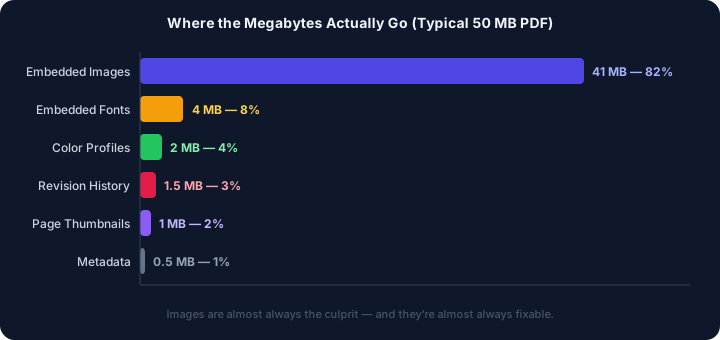
Here’s roughly where those megabytes go:
The Real Culprit: Images at Print Resolution
Images account for more than 80% of PDF bloat in almost every case, mostly because most export tools default to 300 DPI — the resolution used for commercial printing.
300 DPI means 300 dots per inch. A single full-page image at 300 DPI on an A4 document is roughly 2480 × 3508 pixels. At full color (24-bit), that’s around 25 MB for one image, before compression.
Your screen renders at 72–96 DPI. Even a “retina” phone display tops out around 192 DPI.
Email a PDF with a 300 DPI photo inside it, and you’re sending three to four times more image data than the recipient’s screen can display. That extra resolution never becomes visible; it just adds weight to the file.
It gets worse with screenshots. Paste one into Word, PowerPoint, or Google Docs and export to PDF, and many apps embed it at full original size, or upsample it to their default export DPI. A screenshot from a Retina display can end up two to three times larger than it needs to be.
Fonts: The Whole Alphabet, Whether You Used It or Not
PDFs embed fonts to guarantee the text looks the same on every machine. That’s the right idea. But the way it’s often implemented is wasteful.
There are two ways to embed a font in a PDF:
Full embedding packages the entire font file — every character, every weight, every glyph variant. A complete font like Helvetica or Open Sans can be 200–500 KB. If your document uses four font variations (regular, bold, italic, bold-italic), you’ve added up to 2 MB just for text rendering — even if your document only uses the letters A through Z.
Font subsetting (the smart way) strips out every character that doesn’t appear in your document. If your report uses 312 unique characters, only those 312 glyphs are embedded. The same font shrinks to 40–60 KB.
Most modern export tools do subsetting automatically. But older tools, some enterprise PDF generators, and certain “print to PDF” workflows still embed full fonts. You won’t know which one your tool uses unless you look inside the file.
The Revision History Nobody Warned You About
Adobe Acrobat, and most other PDF editors, don’t overwrite the file each time you save. They append to it.
The technical term is “incremental updates.” When you open a PDF, add a comment, and save, Acrobat writes the original file, then appends the changes at the end. Open it again, change a word, save — another append. Open it, move a signature box, save — another append.
By the time you’ve saved a working document 12 times, your PDF contains 12 complete or partial versions of the document, stacked on top of each other. The file you open looks like the final version, but the file on disk is carrying the entire history.
You can see this if you open a bloated PDF in a hex editor and search for %%EOF. Every occurrence of that string marks the end of one version. If you find it eight times, your file has eight revisions inside it.
Using “Save As” instead of “Save” for your final copy flattens all those revisions into one clean version. Most PDF tools also have a “Reduce File Size” or “Optimize PDF” option that does the same cleanup automatically.
Color Profiles: 2 MB of Data Your Screen Ignores
Every professional design tool — InDesign, Illustrator, Photoshop — embeds an ICC color profile in PDFs. These profiles describe exactly how colors in the document should be reproduced on a calibrated output device.
For commercial printing, this matters. The difference between sRGB and CMYK can mean the difference between a vibrant blue and a muddy grey on press.
For a PDF you’re emailing to a colleague to read on their laptop, the color profile is irrelevant — their screen renders sRGB regardless.
A single embedded ICC color profile is typically 500 KB to 3 MB. Documents with multiple images from different color spaces can have several profiles embedded. Most PDF viewers ignore them entirely for screen rendering.
When you export from Photoshop or Illustrator and select “Smallest File Size” instead of a print preset, one of the things that preset does is strip unnecessary color profiles. It’s simply removing data that serves no purpose outside a print workflow.
Page Thumbnails and XMP Metadata
Two smaller contributors that are easy to miss:
Thumbnails. Some PDF creators embed a low-resolution preview image for every page. These are used by file managers to show a thumbnail without fully opening the document. In a 100-page report, that’s 100 embedded images — small ones, but they add up. Disabling thumbnail generation in your export settings removes all of them.
XMP metadata is a block of XML embedded in the file that describes authorship, creation date, modification history, software used, document UUID, copyright, and a dozen other fields. It’s structured for maximum compatibility with asset management systems, not for minimal size. In long-lived enterprise documents that have passed through multiple tools, this metadata block can grow surprisingly large as each tool appends its own records.
Why “Export as PDF” and “Print to PDF” Give Different Sizes
The same document can produce wildly different file sizes depending on how you create the PDF.
“Export as PDF” in apps like Word or InDesign uses the app’s own PDF engine, which follows the settings you configured — DPI, font subsetting, color profile handling, image compression.
“Print to PDF” routes through your operating system’s print driver. The OS driver treats the document as if it’s being sent to a physical printer — which means it rasterizes everything at printer resolution (often 600–1200 DPI), discards vector information, and outputs a PDF made of high-resolution bitmaps. A one-page document printed to PDF this way can be 10× larger than the same document exported to PDF.
If you’ve ever wondered why a PDF from “Microsoft Print to PDF” is massive compared to Word’s built-in export, this is why.
How to Actually Fix It
If you already have the bloated PDF, the fastest fix is running it through a compressor. A proper one recompresses images down to screen-appropriate DPI, strips revision history and unnecessary metadata, and subsets fonts — without changing how the document actually looks.
If you’re exporting fresh, pick “Smallest File Size” or “Screen Optimized” instead of the default print preset. That single change usually cuts file size by 60–80%.
For documents with a lot of photos, resize them to 96–150 DPI in an image editor before you place them. No PDF tool afterward can shrink a 300 DPI image smaller than the same image saved at 96 DPI in the first place — the resolution has to be right going in.
And if you’re working in Acrobat specifically, use “Save As” for your final version instead of repeated “Save,” then run File → Reduce File Size or File → Optimize PDF before you send it.
Reduce PDF file size without losing quality. Works entirely in your browser — no upload, no signup.
Next time a three-page PDF comes out at 47 MB, you’ll know where to look: a leftover 300 DPI photo, a font or two fully embedded, a stray color profile, maybe a dozen incremental saves stacked on top of each other. The format was built for print, and print habits stick around long after most of us stopped printing anything.